


 GTA 6 guides
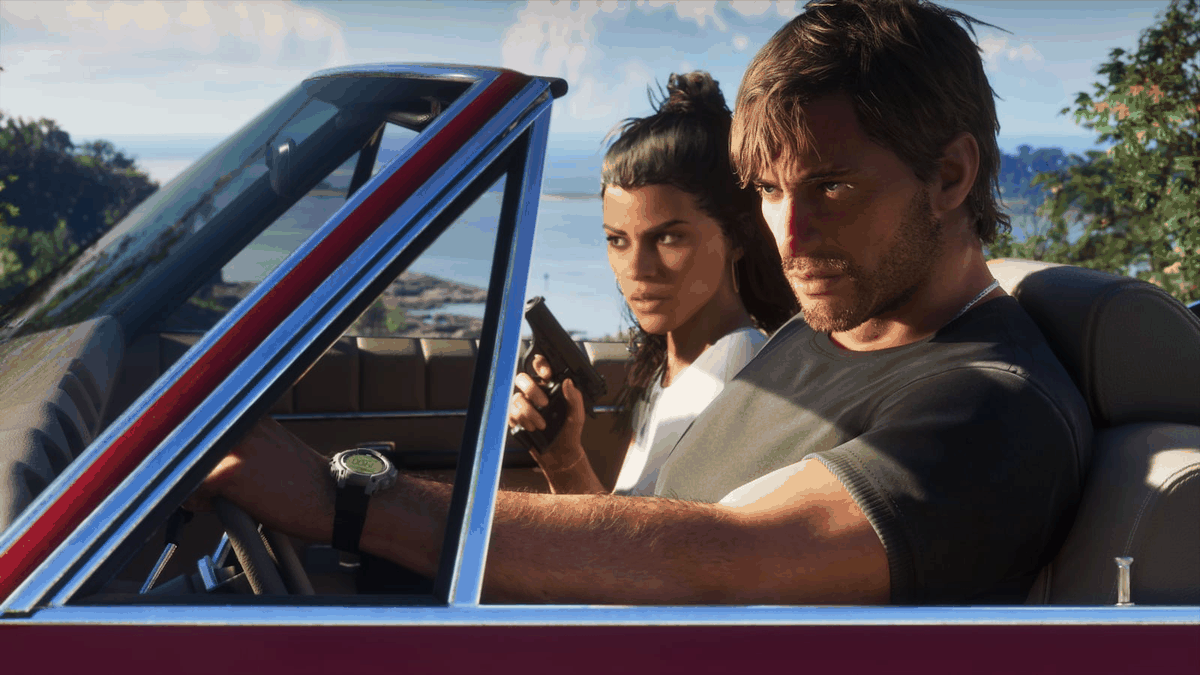
© Rockstar Games. GTA VI.
Updated: November 26, 2026.
There is no graphics mode to pick in GTA 6. The game targets 30 frames per second on every console, PS5, PS5 Pro, Xbox Series X and Series S alike, with no performance or quality toggle in its settings, as guide testing across all four consoles confirmed in launch week. What the settings menu does offer is eight tabs of genuine depth, Control Scheme, Controller, Gameplay, Display, UI, Camera and Audio plus Account, documented in Rockstar's official settings support article. The best play happens outside the game: your TV settings matter more than anything in the pause menu, and the in-game changes worth making are about comfort, not pixels.
Where every setting lives
The Settings menu sits in the pause menu, and on PlayStation you page through its tabs with L1 and R1. Rockstar's support article groups the options into controller layouts, gameplay, display, UI, camera and audio categories.
Two structural facts save you a search:
- There is no separate Accessibility tab. The accessibility options are spread across the Gameplay, Display, UI, Camera and Audio tabs, and the Gameplay tab carries a dedicated Accessibility group.
- Restore Default and Restore All sit at the bottom of the screen, so experimenting is reversible, which settles the fear of breaking a good configuration.
The performance question: 30 fps and what you can do about it
The biggest settings myth to kill first: toggling visual effects will not raise the frame rate. The game targets 30 fps across the console range, per the pre-load announcements and launch tests, and the PS5 Pro simply improves what it can, PlayStation Spectral Super Resolution upscaling plus extra ray-traced shadows, without a mode for you to select. In other words, the console menu has no performance levers to pull.
That moves the real work to the television:
- Switch the TV to Game Mode and turn off motion smoothing and other image enhancers.
- Set the console's HDR to "on when supported" and run the console's built-in HDR calibration.
- Enable 120 Hz output and variable refresh rate if the display supports them; guides note they smooth presentation rather than double the frame rate.
- On Xbox, those live under Settings, General, then TV and Display Options; on PS5, under Screen and Video.
What Rockstar's support pages actually document
Two official articles cover everything menu-shaped, and both are worth bookmarking:
- How to change Grand Theft Auto VI settings walks through the Control Scheme, Controller, Gameplay, Display, UI, Camera, Audio and Account tabs: controller layouts tailored per activity, on foot, aiming, melee, driving, aircraft, bicycle, swimming and parachuting, plus aim and look sensitivity, inverted controls and the PS5 DualSense features including adaptive triggers.
- Grand Theft Auto VI Accessibility Features, updated after launch, catalogues the six setting groups and the standout options: Auto Drive, a "simplified minigames" toggle, high-contrast shaders, menu narration, audio description for cutscenes in English, and DualSense vibration and resistance adjustments.
The audio group deserves more attention than players give it. Community documentation of these options counts mono audio, a tinnitus reduction filter, a controller-speaker channel that can carry the police scanner, GPS voice prompts, licensed-music muting and volume sliders per sound source. That is a full sound-setting pass in a game where audio is half the ambience.
Settings worth changing in the first hour
These are community-recommended values, published by guides that tested the menus, not official Rockstar recommendations, so treat them as a starting point:
- Camera tab: Motion Blur to 0, Camera Shake off, Camera Bob between 0 and 3. All three reduce visual noise, and at a locked 30 fps less smear reads as more stability.
- Movement speed: guides differ between Run and Jog; Jog suits cautious play and story beats, Run suits open cruising, and changing it later costs nothing.
- Look sensitivity: the frequently suggested range is 8 to 9 for combat, but sensitivity is a personal fit, and drone races specifically reward dropping look sensitivity before running them, a tip from the drone race guides.
- PS5 controller: turning Adaptive Trigger Resistance off saves your hands over long shooting-range sessions, and the DualSense haptics remain available separately.
- UI: turn subtitles on at medium size, and let the control hints stay visible for the first few hours before hiding them.
The sensible objection is "just play the defaults", and it deserves a fair hearing: the game boots well configured, and nothing above is compulsory. The rebuttal is that a 30 fps game makes the television the weakest link, and comfort settings are the cheapest quality upgrade available, given that none of them cost performance.
My own first evening went exactly by this list, motion blur off first, sensitivity second, and the difference was obvious in boat chases rather than in photo mode. One honest note: changing nothing would have been fine, too, which is the correct spirit for a settings page.
Patch note: what the November 23 update meant for settings
The first post-launch patch, version 01.002.002 on November 23, touched none of these menus: it fixed crashes, broken autosaves, weather that had stopped changing, story phone calls that failed to advance missions, and a gym deadlift bar that stopped working, as the patch roundups collected. Two takeaways for settings: your configuration survived the patch intact, and the fixes removed problems that launch-week players had been blaming on their controller setup, such as missions stalling because a story phone call never triggered. If you tuned your sensitivity during launch week on a bug-affected save, recheck it now before deciding the settings were wrong.
When to copy recommended settings and when not
Copy the community camera settings if long sessions give you eye strain or mild motion discomfort; the high-contrast shaders and narration options exist for exactly that reason. Skip the sensitivity numbers if you are settled on your current aim: what matters is what your hands have memorized, not the printed value, so adjust one point at a time and test in a shooting range rather than mid-mission.
FAQ
Does GTA 6 have a performance or quality mode?
No. GTA 6 targets 30 frames per second on PS5, PS5 Pro, Xbox Series X and Xbox Series S, with no mode selection in any menu; the PS5 Pro applies its enhancements automatically.
Where do I change aim sensitivity in GTA 6?
Pause the game, open Settings and use the controller tab, where Rockstar's support article lists aim and look sensitivity alongside inverted controls and button layout options.
What are the best camera settings for GTA 6?
Community guides suggest Motion Blur 0, Camera Shake off and Camera Bob between 0 and 3, with look sensitivity around 8 to 9; these are comfort recommendations, not requirements, and a locked 30 fps makes them more noticeable.
Where are the accessibility settings in GTA 6?
Spread across the tabs rather than collected in one place: the Gameplay tab holds an Accessibility group, and Display, UI, Camera and Audio each carry further options documented in Rockstar's official accessibility article.